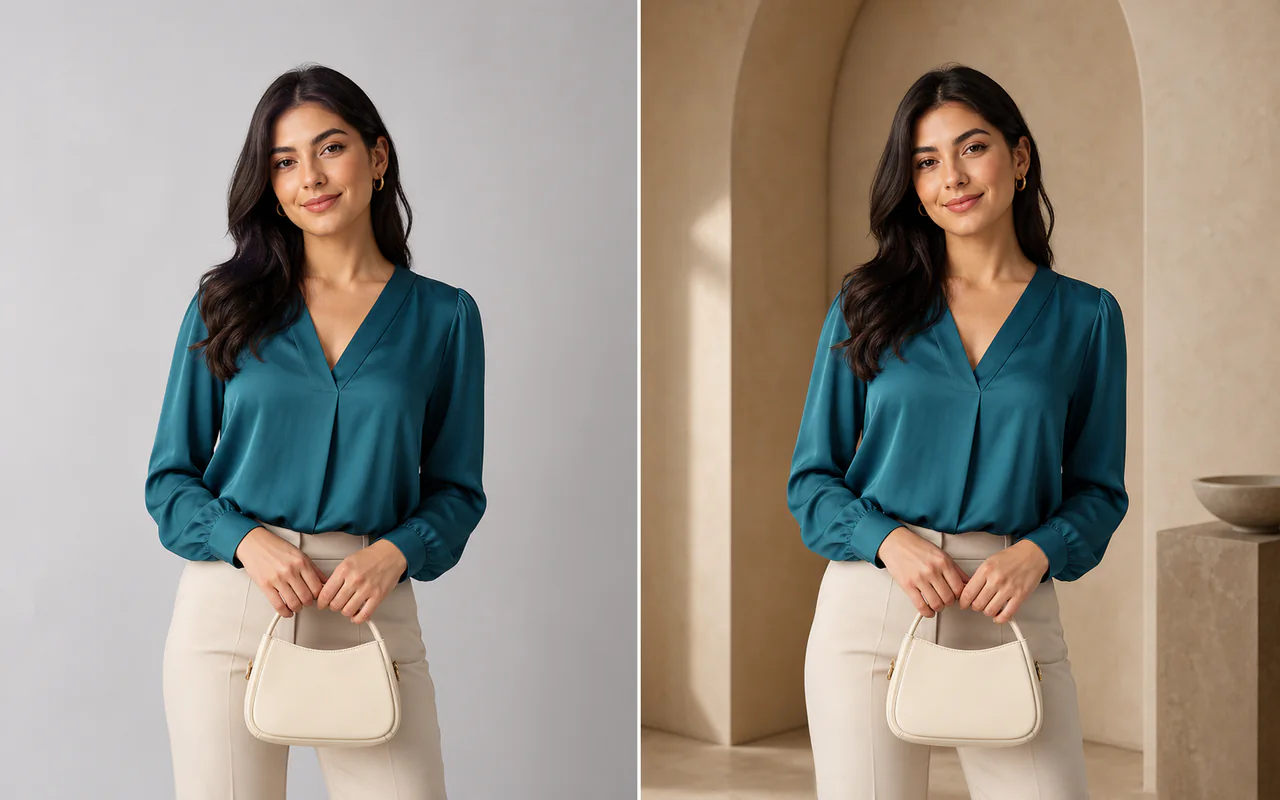
Vorher Nachher
Hintergrund ersetzen
Neue Szene bei stabilem Motiv und Aufbau.
Bild hochladen, Änderung beschreiben und das Ergebnis in einem Arbeitsbereich vergleichen.
Ausgangsbild
Mit einem bewährten Muster starten und den Prompt anpassen.
Neue Szene bei stabilem Motiv und Aufbau.
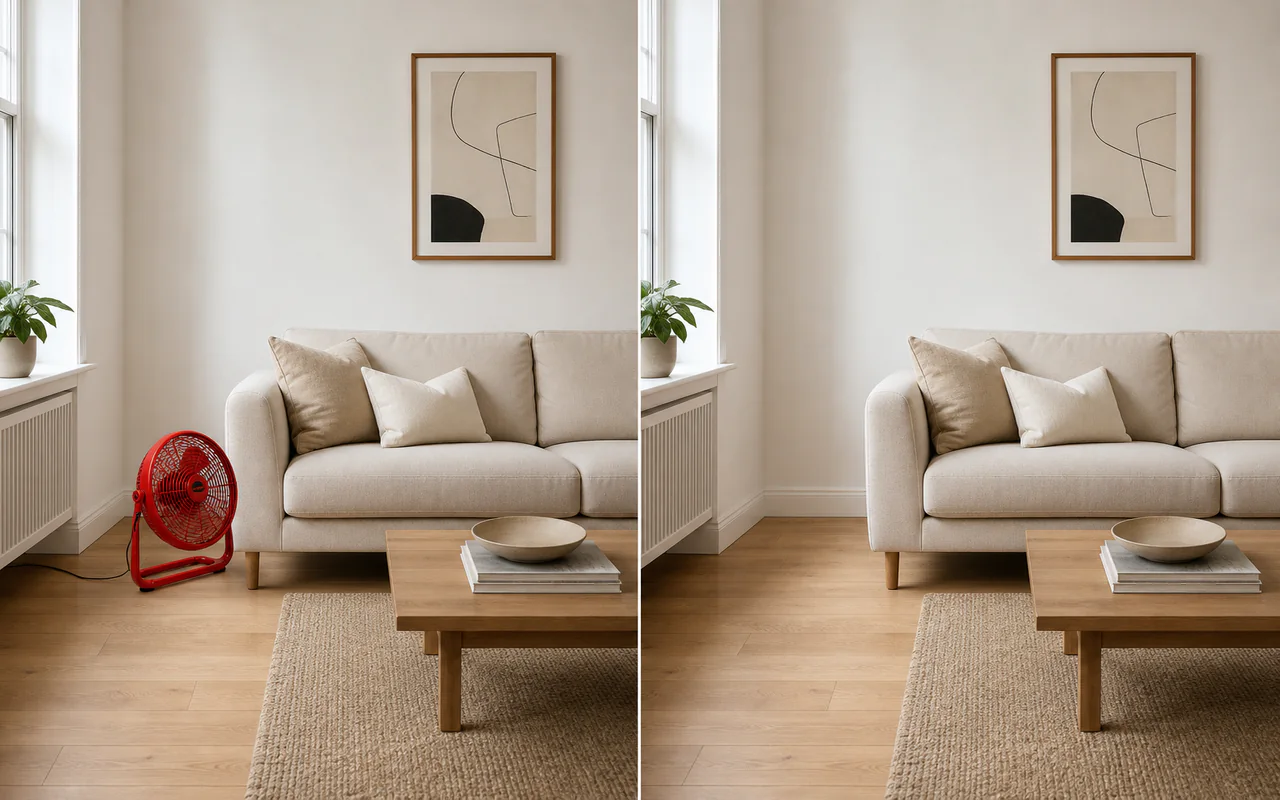
Störendes Objekt markieren und Hintergrund ergänzen.
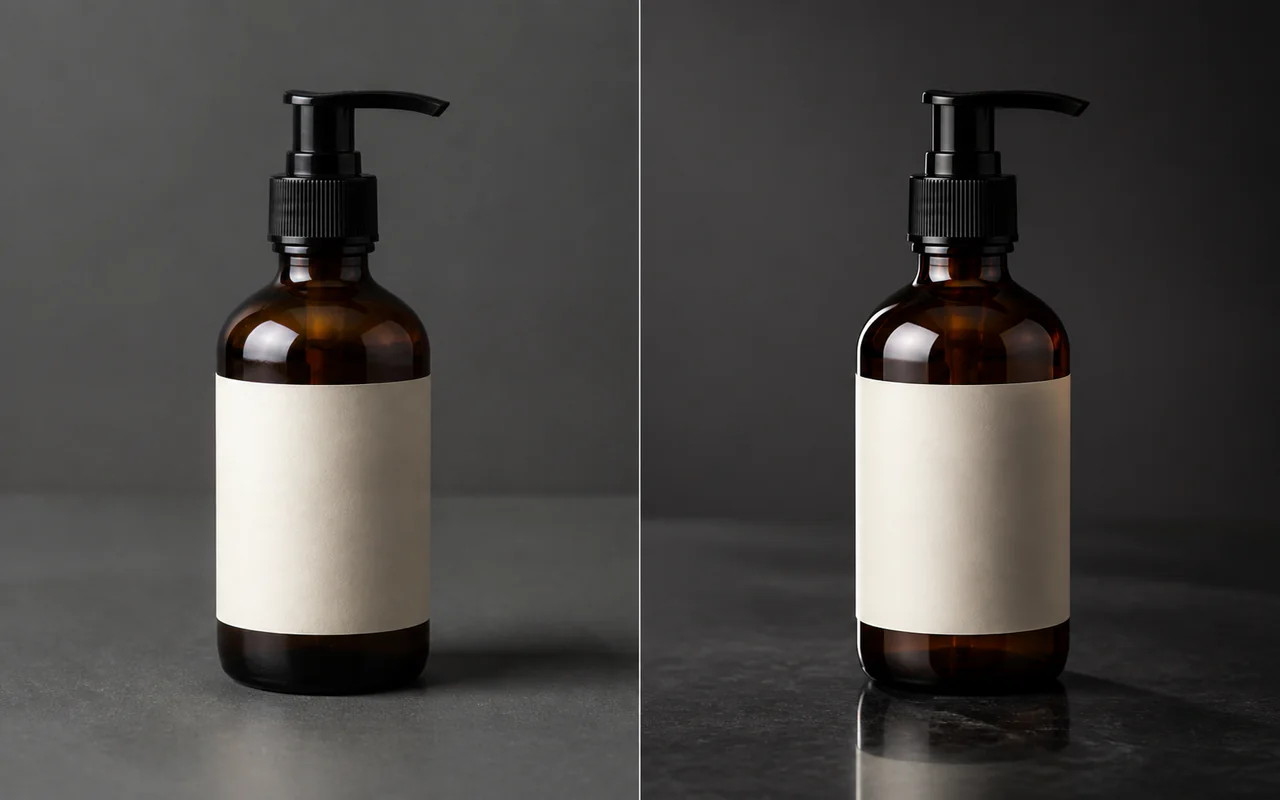
Reflexionen säubern und Details verbessern.
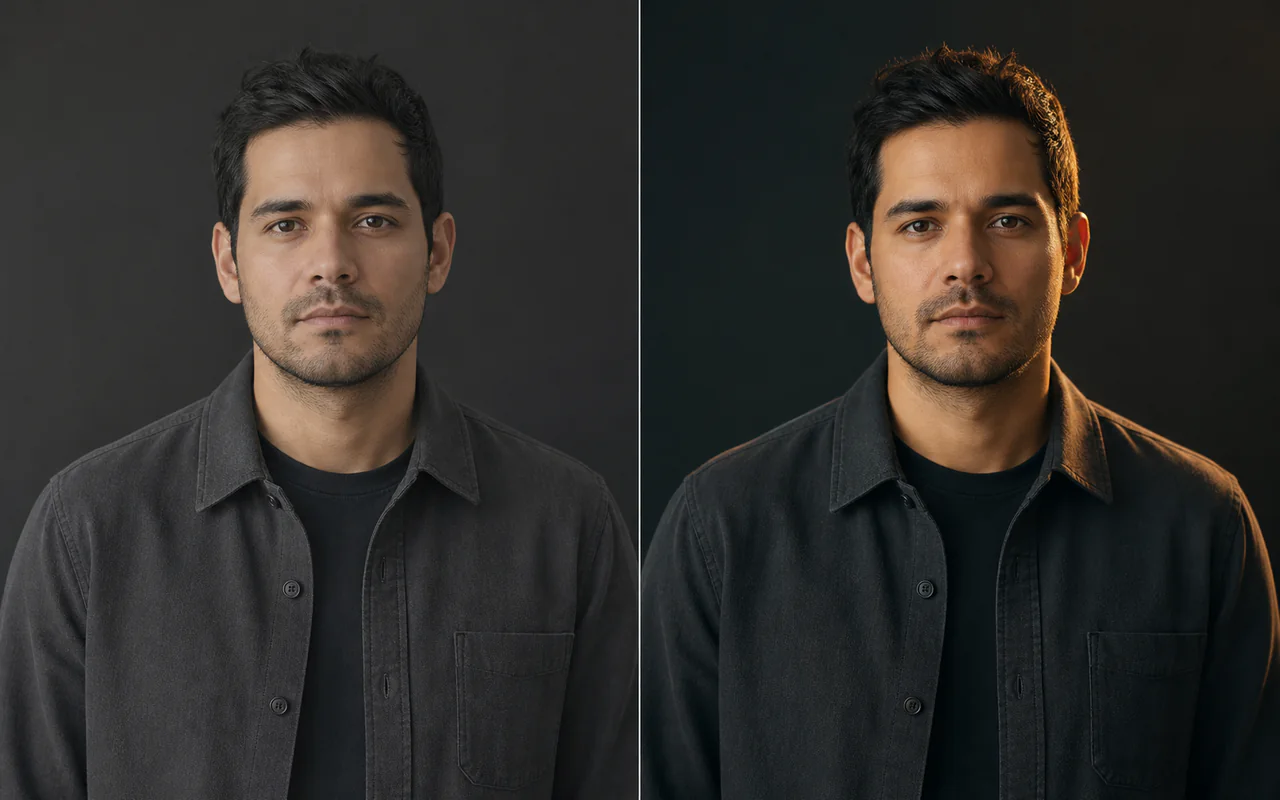
Identität und Pose bei neuer Lichtstimmung bewahren.
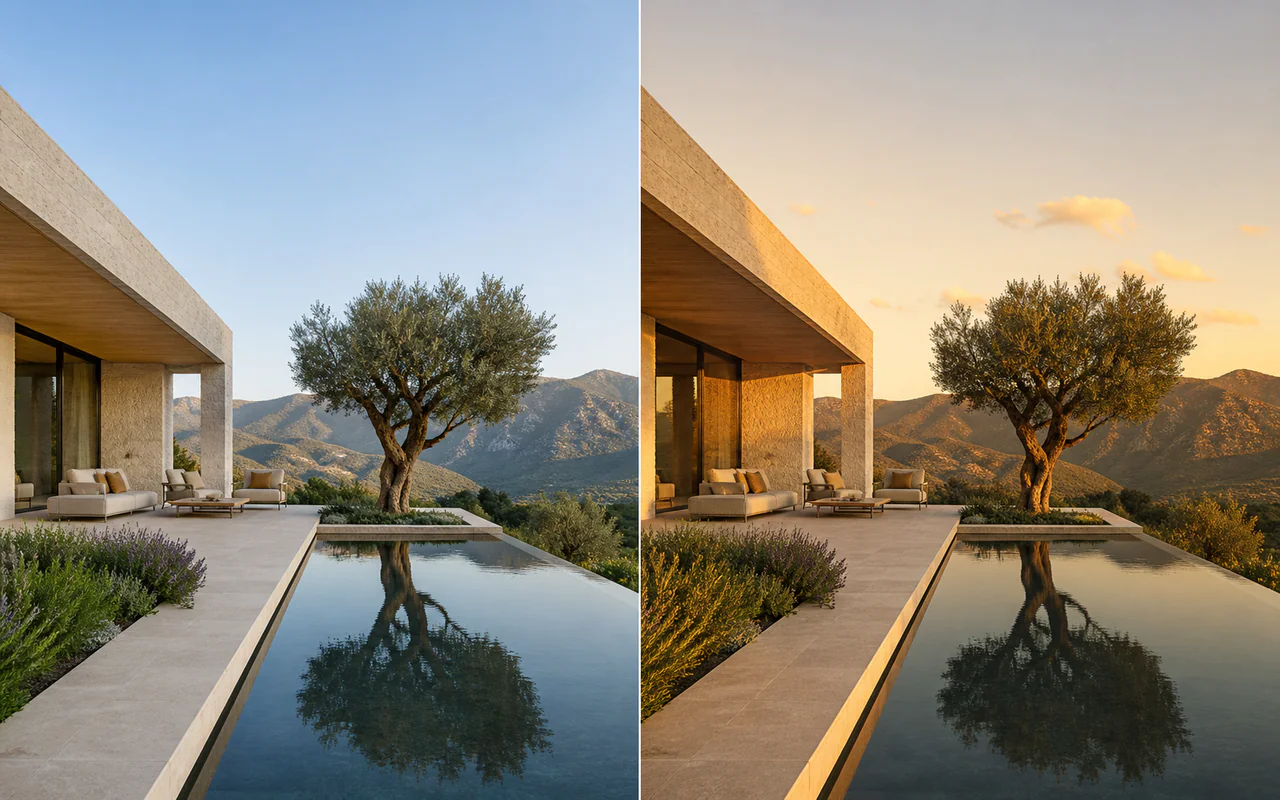
Stimmung ohne Neuaufbau der Szene verändern.
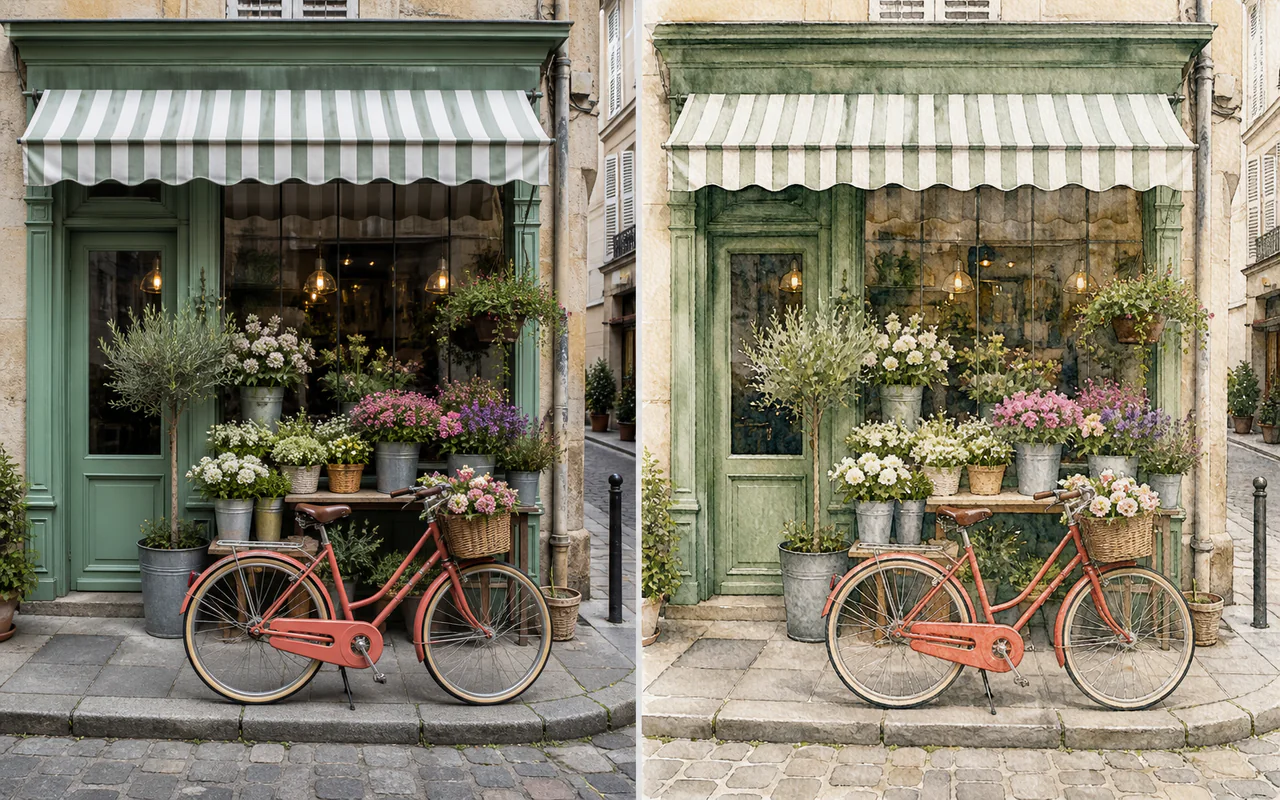
Foto in einen konsistenten Illustrationsstil umwandeln.
Z-Image-Edit is the dedicated editing member of the Z-Image model family developed by Tongyi-MAI. It is designed for instruction-driven editing and creative image-to-image work. Until those weights are released, this workspace uses currently available editing models through WaveSpeed.
Tongyi-MAI still lists the dedicated Z-Image-Edit weights as “To be released.” This online editor does not claim to run unreleased weights: whole-image instruction edits use Qwen Image Edit Plus, while masked local edits use FLUX Dev inpainting.
Check the official Tongyi-MAI repositoryThe public model status and intended roles of the Z-Image family.
| Model | Main purpose | Steps | CFG | Availability |
|---|---|---|---|---|
| Z-Image Turbo | Fast generation and quick remix | 8 | No | Available |
| Z-Image | Generation and fine-tuning | 50 | Yes | Available |
| Z-Image-Edit | Dedicated image editing | 50 | Yes | Not officially released |
Add a PNG, JPG, or WebP source image. You can prepare everything before payment is checked.
Choose whole-image editing or paint an inpaint mask, then describe the intended change.
Start the paid task, compare before and after, then download or continue from the result.
Specific prompts preserve the parts that matter and give the model a clear target.
Replace the wooden chair with a black leather lounge chair. Keep the room, camera angle, lighting and every other object unchanged.
Replace the background with a clean luxury studio with soft beige walls. Keep the subject, camera angle and lighting direction unchanged.
Change the blue jacket to a beige wool coat while preserving the person's face, pose, body proportions and background.
Place the perfume bottle on polished black stone with soft studio lighting and subtle reflections. Preserve the bottle shape and label.
Repair the damaged area with matching texture, color, lighting and perspective. Keep all unmasked pixels unchanged.
Choose the workflow that matches how much setup and control you want.
No installation. Upload, prompt, mask, compare and continue editing in one browser workspace.
Run local workflows with node-level control, custom models and more technical configuration.
Read the ComfyUI guideThe API checks a successful credit-pack purchase before accepting source images, masks, or edit tasks.
Uploaded sources, masks, and results are stored as private user assets and served through authenticated or signed links.
Whole-image edits cost 3 credits and inpainting costs 4 by default; failed tasks are refunded automatically.
No. As of August 12, 2026, Tongyi-MAI still marks the dedicated Z-Image-Edit weights as “To be released” in its official repository.
Yes. Until the dedicated weights are released, this workspace uses Qwen Image Edit Plus for whole-image instructions and FLUX Dev for masked local edits.
Only signed-in users with at least one successful credit-pack purchase can start an edit. Visitors can prepare an image, prompt, settings, and mask before unlocking it.
Whole-image editing costs 3 credits and inpainting costs 4 by default. The button shows the configured cost before submission.
Yes. Use Inpaint for a selected object or local region, and Whole Image when the background or overall appearance should change.
The existing asynchronous job system returns reserved credits automatically when a provider task fails.
Yes. Choose Use as source to create an explicit result-to-result editing chain without downloading and uploading again.
Yes. The ComfyUI guide covers local Z-Image workflows. The dedicated Z-Image-Edit weights cannot be installed until Tongyi-MAI releases them.
Bild und Prompt kostenlos vorbereiten und den bezahlten Editor beim Generieren freischalten.
Nutze eine Prompt-Vorlage, bearbeite ein Bild oder erhöhe seine Auflösung.